 How-to
How to Summarize a Web Page with AI in Chrome
You open a page, scroll, and realize it will take ten minutes to find out whether it answers your question. An AI website summarizer gives you that answer first. This guide shows how to summarize any web page in Chrome with Paragraph Summarizer, a lightweight extension that works on the page itself.
Step 1: Install Paragraph Summarizer
- Open the Paragraph Summarizer page in the Chrome Web Store.
- Click Add to Chrome and confirm.
- Pin the extension from the puzzle-piece menu so the icon is always visible.
Step 2: Summarize the whole page
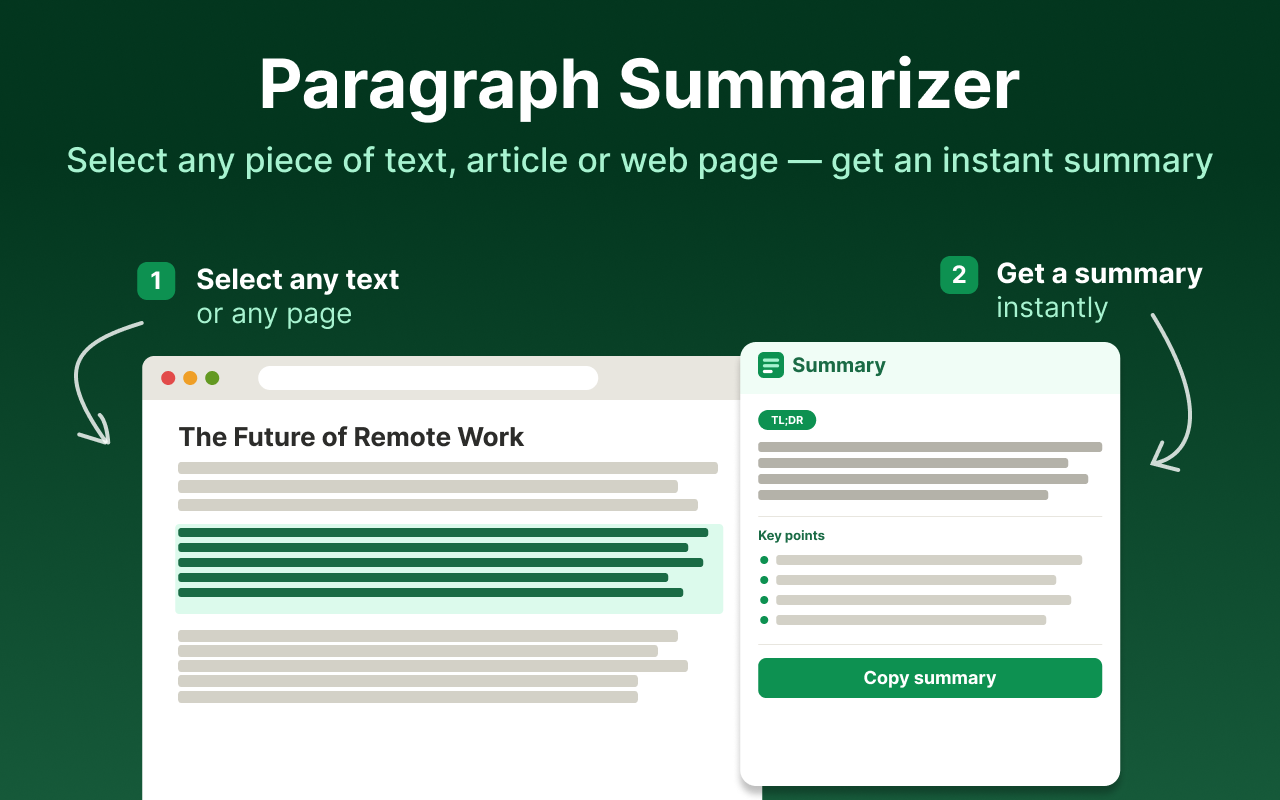
Open the website you want to read and click the Paragraph Summarizer icon. The extension reads the main content of the page and shows a condensed summary in a side panel. The original page stays open, so you can jump to the part that interests you.
You can also right-click anywhere on the page and start the summary from the context menu.
Step 3: Summarize only what matters
Long pages often mix background, ads, and the one section you need. Highlight that section, then run the extension: you get a summary of the selection only. This works well for a single chapter of documentation, one answer in a forum thread, or the conclusion of a long report.
Step 4: Choose the level of detail
Pick the length and format of the summary. A short version helps you triage a page in seconds. A longer one is better when you want notes you can come back to.
What kinds of pages summarize well
- News articles: get the facts before the commentary.
- Blog posts and newsletters: see the main argument without the intro.
- Wikipedia and reference pages: extract the definition and key facts.
- Documentation and tutorials: find out what a page covers before working through it.
- Research pages and online journals: check relevance before reading in depth.
Tips for summarizing websites more effectively
- Summarize first, read second. Use the summary to decide which sections deserve a full read.
- Select when the page is noisy. On pages with comments, sidebars, or several articles, a selection gives a cleaner result than the whole page.
- Verify the details you will reuse. Numbers, quotes, and names are worth checking against the original before you cite them.
Why use an extension instead of a website summarizer
Online summarizer sites need you to copy a URL or paste text, and some can't open pages behind a login. An extension summarizes what is already rendered in your browser, in the same tab, with one click.
Next steps
Frequently asked questions
How do I summarize a web page in Chrome?
Install the Paragraph Summarizer extension, open the page, and click the extension icon. The summary of the whole page appears in a side panel next to the content.
Do I need to copy and paste the page text?
No. The extension reads the page you have open, so there is nothing to copy into another website.
Can I summarize just one section of a website?
Yes. Highlight the section first and run the extension. Only the selected text is summarized.
Which websites does it work on?
It is designed for text-heavy pages: news sites, blogs, Wikipedia, documentation, tutorials, online journals, and PDFs opened in Chrome.